A vintage grain overlay png adds grain in a straight line: at 25 percent opacity it gives a quarter of the grain the file carries, and at 50 percent it gives half. You start at 25 percent and move up only when your photo still looks too clean.
No overlay texture on sale states a percentage, and hardly any use a word like opacity, intensity or strength. So the amount of wear is something you set, not something you buy.
Below you get a table of what each opacity does, what grain, dust, scratches, paper and halftone do to a photo, and what the blend mode changes. You also get a one-minute test for a transparent PNG and the limits of a free overlay.
To try the numbers on a real file, start with vintage overlay png sets that name their pixels.
How much grain a vintage overlay PNG adds at four opacities
Quick answer:
- Opacity: grain grows in a straight line with it. A grain layer that varies by 40 steps of brightness gives 4 at 10 percent, 10 at 25, 20 at 50 and 40 at 100.
- Blend mode: in my test Screen and Multiply gave half of that grain, and they move the brightness of the whole photo.
- Type: grain spreads over the whole frame, dust and scratches sit in a few places, paper changes the colour of the page.
- PNG: put it on a dark colour. A black or white box around the texture means it is not transparent.
- Licence: a free overlay is often for personal use only, and one file rarely makes a set.
A vintage overlay PNG is ready to use when you know its strength at your opacity, the blend mode, the transparency and the licence.
I made this table myself, because no listing prints it. I laid a grain layer over a flat grey card and read how far the brightness varied after blending. The card was 128 on a scale of 255, the grain layer varied by 40, and the image was 1000 by 1000 pixels.
Your photo has its own texture, so treat the numbers as a starting point.
Sellers name PNG in about a third of overlay listings and transparency in about one in six. A size in pixels is common, and the word commercial is rare. PNG, transparency, 300 dpi and a commercial licence together appear in none of them. Vintage clipart png bundles that state all of it are the exception.
Why the same overlay looks stronger on one photo than on another
You set 25 percent on a portrait and it looks gentle. You set the same 25 percent on a sky and the file looks dirty. Nothing is broken.
You see grain against a smooth area, and you lose it inside a busy one. On a flat sky, a painted wall or a cream scrapbook page you see every speck, because nothing competes with it.
If your photo shows a brick wall, it already has a texture, and the same overlay vanishes into it. That is the first reason to judge strength on the photo you will use, not on the preview in the listing.
This is the pain behind the search. A buyer downloads a nice preview, lays it on a photo and gets a result she did not choose. The cure is a habit: you test on your own photo, at 25 percent, and then decide.
People type vintage png overlay, vintage paper overlay png and vintage film overlay png, and each brings a different file. For a sample to test on, open a vintage photo overlay png listing and lay the preview over your own photo.
Grain, dust, scratches, paper and halftone: what each one does to a photo
Five kinds of wear sit under the word overlay, and they do different jobs. Dust is named most often in listings, then grain, then scratches.
- Grain: fine noise over the whole frame. It softens digital sharpness, so your clean photo looks like film.
- Dust: small bright specks in a few places. It adds age, and you keep the rest of the picture untouched.
- Scratches: thin lines, usually vertical. They are the strongest sign of old film, and you overdo them easily.
- Paper: a fibre texture with a tint. It changes the colour of the whole page, and you need it for scrapbooks.
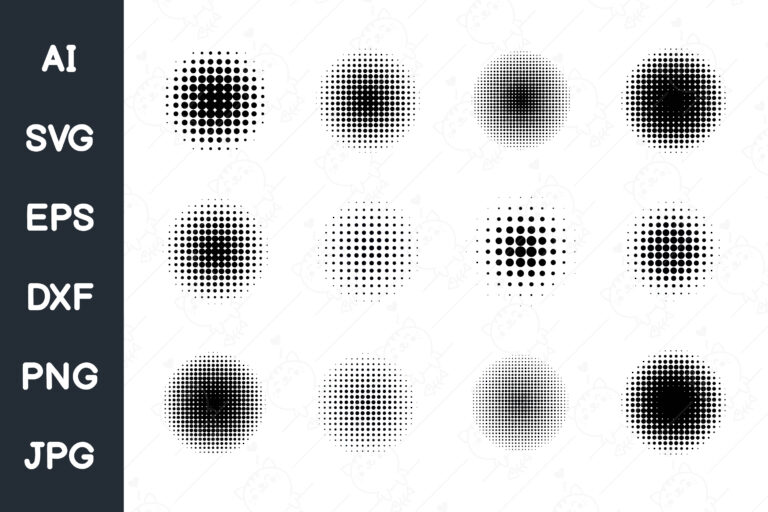
- Halftone: a regular dot pattern, borrowed from print. It reads as a poster, not as a photo.
The grain layer in my test varies over every pixel. The dust layer touched 1 pixel in 100, and that changes what the numbers mean.
Normal blending at 100 percent opacity turns the grey card to noise around the same grey. The same blending of dust at 100 percent covers the card with black, so the average brightness falls from 128 to 2. At 25 percent it falls to 96.
That is why dust is set low and grain is set low as well, for a different reason: dust hides the photo, grain just shakes it. A single dust file at 100 percent is a mistake you make once.
When the file should not be grain
One exception is worth knowing. A halftone or a paper texture over a portrait can look like a mistake, because it flattens the skin and tints it.
You use halftone for posters and shirts, and paper for pages. For the print side, the screen printing designs notes explain what a dot pattern needs, and the vintage paper scrapbook guide shows the paper side. To compare kinds of wear, open a dust and scratches overlay listing beside a grain one.
Opacity table: 10, 25, 50 and 100 percent
The numbers below come from my grey-card test described above. You read the first column as the opacity slider and the others as how far the brightness varies from the average.
| Opacity | Grain, normal blend | Grain, Screen or Multiply | Average brightness with dust |
|---|---|---|---|
| 10 percent | 4 | 2 | 115 |
| 25 percent | 10 | 5 | 96 |
| 50 percent | 20 | 10 | 65 |
| 100 percent | 40 | 20 | 2 |
The grain column is the rule in numbers. If you halve the opacity, the grain halves too, and you never get more than 40 from a layer that varies by 40.
The last column is the trap. Dust adds little visible noise, but you lose brightness with it, because the specks are laid over the picture. A photo that looks flat after you add dust is darker, not grainier.
So I follow a plain order. Set grain to 25 percent, look at the photo at full size, and raise it in steps of 10 only if it still looks clean. Leave dust under 25 percent and add scratches last, because your eye finds a scratch first.
A seller who writes a percentage knows how the file behaves, and grain overlay sets that mention opacity are worth a closer look.
Normal, Screen and Multiply: what the blend mode does to the grain
The blend mode decides how the overlay mixes with the photo, and it changes two things at once: how much grain you get and how bright the picture stays.
- Normal: the overlay covers the photo in proportion to its opacity. The grain is strongest here, and the brightness stays near the photo’s own.
- Screen: only the light parts of the overlay show, and they lighten the photo. In my test the average brightness rose from 128 to 192 at 100 percent.
- Multiply: only the dark parts show, and they darken the photo. The average fell from 128 to 64 at 100 percent.
Both Screen and Multiply gave half the grain of Normal at the same opacity: 2, 5, 10 and 20 where Normal gave 4, 10, 20 and 40. Many sellers mention a blend mode, so they know the setting matters.
Use Screen for dust and light leaks when you work with bright specks on a dark background. Use Multiply for paper and stains, which are dark on a light one. Use Normal when the file is a PNG with real transparency and you want the grain at full strength.
If your PNG has a black background, you use Screen, and if it has a white one, you use Multiply. A transparent PNG needs neither, and that is why you check it first. For a poster, the vintage poster design notes show where you should stop the wear, and film grain overlay png files are the easiest ones to test blend modes on.
Check the PNG is really transparent before you stack it

A file you buy as a transparent PNG can still carry a black or white background. On a white page, a white box looks like nothing, and that is how the fake survives the preview.
Run the check in three steps:
- Put the file on a dark colour. A flat grey or black layer under it is enough.
- Look around the texture. You should see the dark colour between the specks. If you see a pale box, the transparency is fake.
- Swap to a light colour. A dark halo on the edge of a speck means the file was cut from a black page.
Few listings say transparent, so most leave you to find out. I always test the first file of a pack, because the rest are usually cut the same way.
If the file turns out to have a solid background, you can still use it: set the blend mode to Screen for black and Multiply for white, as in the section above. It will not work on a coloured page without a mode, and you lose control over the edges.
The shadow trap
You may find an overlay that carries a soft shadow or a glow baked into the specks. A shadow is made of half-transparent pixels, so it vanishes on white and turns into a grey smudge on any other colour.
Look for a line in the listing that says whether the shadow is part of the file. If it does not say, test it yourself on a coloured page. For the same edge tests on thin shapes, the vintage skeleton key clipart guide covers the method, and transparent texture overlay png listings are the place to try it.
How to stack grain, dust and paper without a muddy photo
One layer is easy. With three layers on top of each other your photo goes muddy, because each one adds its own share of noise and brightness.
The order that works for me, and will work for you, from the bottom up:
- Paper: first, at low opacity, in Multiply. It sets the colour of the page.
- Grain: second, at 25 percent in Normal. It ties the photo and the paper together.
- Dust: third, at 10 to 20 percent in Screen. It adds a few bright specks.
- Scratches: last, at 10 percent. One or two lines are enough.
The reason is simple arithmetic. Two grain layers at 25 percent each give about 14, not 20, because independent noise adds as a square root of the sum of squares. Three layers at 25 percent give about 17. So the second layer adds less than you expect, and the third even less.
The brightness is where layers add up in a straight line. Paper in Multiply darkens, dust in Screen lightens, and they roughly cancel if both are kept low. Check your photo at the end and lift it with a curve rather than with another layer.
Compare at full size, not at a screen-fit view, because grain disappears when a photo is shrunk. If your page carries several photos, the vintage letter, map and travel clipart guide shows what you can put around them, and paper texture overlay png files give you the bottom layer.
Size and resolution of an overlay for a print
An overlay is a picture, and it has a size in pixels. You divide the width by 300 to get the widest print in inches that stays sharp: a file 3000 pixels wide gives you 10 inches.
If the overlay is smaller than your photo, the program stretches it, and every speck of grain grows. That is why your grain layer looks blotchy on a large print.
Many listings state a size in pixels and many state 300 dpi. The two are not the same number, so read the pixels, not the label. A file marked 300 dpi at 600 pixels wide is only 2 inches.
For a screen, you need a file 2000 pixels wide at most. For a print on a shirt, check the retro graphic design files that print notes, and pick a high resolution overlay png that matches your sheet.
Real overlay sets with reviews are not many, so here are three that state a size in pixels and a transparent PNG. Read each listing for the licence before you buy.
Unlimited creative assets. Access to AI tools.
Commercial licence included.
Browse all
Distressed Pattern Overlay PNG Files
Ten distressed overlay patterns, each 3600 x 3600 px, as transparent PNG files. Best for you for wear on digital papers and junk journal pages. Rated 5.0 over 9 reviews.

Scratch Texture Overlay Digi Stamps
Twenty-five scratch overlays at 11 x 8.5 inches, as transparent PNGs. Best for you when you want scratches as their own layer. Rated 5.0 over 5 reviews.

Old Letter Transparent Overlays
Twenty old letter and handwriting overlays, PNG files at 3000 x 3000 px. Best for you for an aged paper look with writing on it. Rated 5.0 over 10 reviews.
Before you buy a set, know how little the product page usually tells you. Out of 99 overlay texture sets on sale at Creative Fabrica (grain, dust, scratches, grunge, paper, film), PNG is named in 36, transparency in 17 and a pixel size in 59. A blend mode is suggested in 35. The strength of the effect is named in 4, and a percentage in none. That is why you test opacity yourself: the page will not tell you how much grain you are adding.
The licence on a free overlay
A texture you can see is not a texture you may print.
Someone photographed, scanned or drew the file, and the terms of that work travel with it, so you inherit them. The licence is a separate question from the format, and a clean PNG can still be for personal use only.
Three readings cover most listings:
- Personal use: a card for a friend, a page in your own album.
- Commercial use: a printed product you sell. You look for the words commercial use or printed products.
- Resale of the file: almost never allowed.
The listing has to say it, and very few use the word commercial. I never print for a client until I have read that line, and you should not either. The assistant in a search engine says the same: check the licence of each asset before use.
The same holds for scanned textures that look old, as the vintage Santa clipart checks show. When a client is waiting, read the licence line of each texture overlay listing before you print.
Before you use a vintage overlay PNG, confirm:
- You tested it on a dark colour and the box around the texture is gone.
- You began with the opacity at 25 percent and looked at full size.
- The blend mode fits the file: Normal for transparent, Screen for black, Multiply for white.
- The overlay is at least as wide as your photo, measured in pixels.
- The licence names the use you plan.
What a free overlay leaves out and a matching set adds
A free vintage overlay png is a fair place to begin, and for a photo at home you may need nothing more. I use free files for drafts. They leave out four things:
- Strength: the effect is never given as a percentage, so you find it by trying.
- Transparency: the background is sometimes baked in, and the preview hides it.
- Completeness: you get one texture, not grain, dust and paper that share a size and a style.
- Rights: the page seldom says whether you may print for a client, and each download has to be checked one by one.
A set fixes the third point for you and helps with the others.
If your card, page and mockup carry wear from different hands, they look like a sample sheet. Textures made in one style, at one scale and with the same edge treatment make your project look planned.
When a free overlay runs out of size or rights, vintage clipart png bundles with a stated size and licence are the next step. For other shapes from the same period, the vintage car clipart guide runs the same background test.

Questions about vintage overlay PNG
How much grain does a vintage overlay add?
It depends on the opacity. In my grey-card test a grain layer that varied by 40 gave 4 at 10 percent, 10 at 25, 20 at 50 and 40 at 100.
How do I overlay a PNG on a photo?
Place the PNG above the photo as a layer, set the blend mode to Normal for a transparent file and lower the opacity to about 25 percent. Resize it to cover your photo, then you look at full size.
Why does my vintage overlay make the photo look dirty?
Your opacity is probably too high, or the blend mode moved your brightness. Dust in Normal at full opacity covered my test card until the average brightness fell from 128 to 2.
Which blend mode is best for a vintage overlay?
Use Normal for a transparent PNG, Screen for a black background and light leaks, Multiply for paper and stains. Screen and Multiply give half the grain of Normal at the same opacity.
How do I know a vintage overlay PNG is transparent?
Put it on a dark colour. If you see a pale box around the texture, the background is baked in.
Is a free vintage overlay png fine to use on products I sell?
Only if the licence says so. Many free files are for personal use, so check each download before you print for sale. For a clear commercial licence, compare vintage overlay png sets.
What size should a vintage overlay be?
At least as wide as your photo. Divide the pixel width by 300 to get the widest sharp print in inches.
PNG or JPG for a vintage overlay?
Use PNG when you need the photo to show through the texture. A JPG never has transparency, so it needs Screen or Multiply and only works on a matching background.
Can I use more than one overlay on a photo?
Yes, but each layer adds less noise than the one before: two grain layers at 25 percent give about 14, not 20. Keep your paper, grain, dust and scratches in that order and lower each one.
Key takeaways
- Grain follows opacity in a straight line: 4, 10, 20 and 40 at 10, 25, 50 and 100 percent in my test.
- Start at 25 percent and look at full size before you raise it.
- Screen and Multiply give half the grain and move the brightness of the whole photo.
- You test a PNG on a dark colour; a pale box around the texture means the transparency is fake.
- No listing states a percentage, so you set the strength yourself.
- Few mention a commercial licence, so you read the licence line.
- Ready for files? Start with vintage overlay png sets that name pixels and licence.